Advertisement
The ClickGUI is the central interface for Aoba Client. Nearly every function of the mod can be accessed through it, such as: enabling and disabling modules, adjusting their settings, adding HUD overlays, and more.
As of 1.21.11+, the default keybind to toggle the ClickGUI is Right Shift. If you would like to use a different key, the keybind can be changed in the HUD settings page (described below), or by running the following command in chat:
.aoba clickgui set [key]
.aoba clickgui set RSHIFT
You can rebind it at any time.
The ClickGUI features a flexible window system. Each panel can be freely moved and resized to suit your layout.
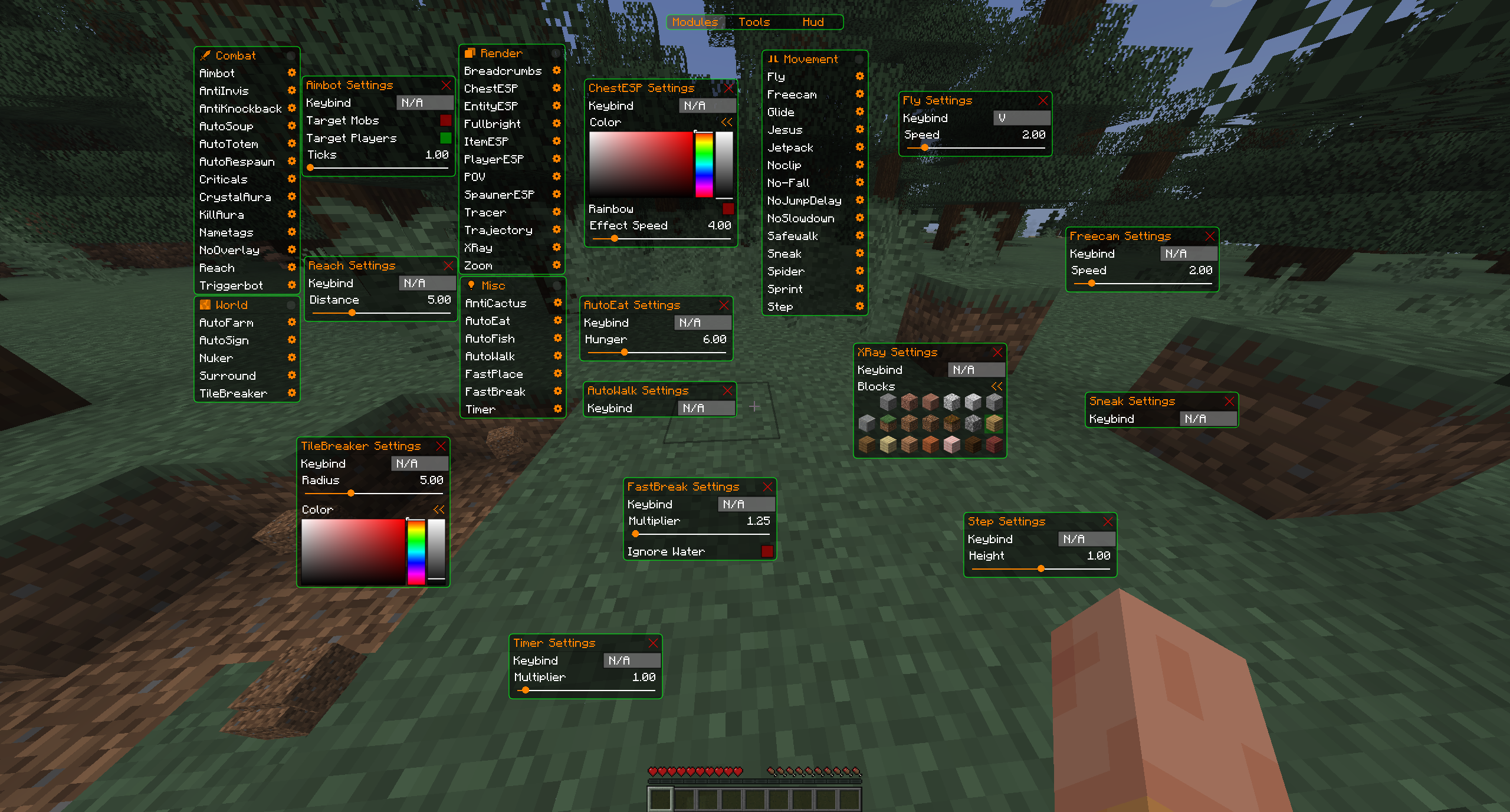
The ClickGUI supports extensive visual customization. From the HUD settings page, you can adjust:
These options allow you to personalize the look and feel of Aoba to your preference.
The ClickGUI is organized into several pages, each grouping different types of content.
This page lists all available modules organized by category. Each module has a gear icon next to it. Clicking the gear opens a settings window for that specific module. Clicking the module name toggles it on or off.
Any installed Aoba addons will also have their modules displayed here, including any custom categories they define.
A central location for GUI-based tools. Currently this includes the AuthCracker for offline servers, which allows you to test cracked accounts using a set of commonly used passwords.
This page lets you manage on-screen HUD elements and GUI-specific settings.
Advertisement
