Advertisement
Macros allow you to record and play back sequences of keyboard, mouse, and scroll inputs. This is useful for automating repetitive tasks, creating complex movement patterns, or replaying specific actions with precise timing. The Macro Window can be found in the Tools page of the ClickGUI.
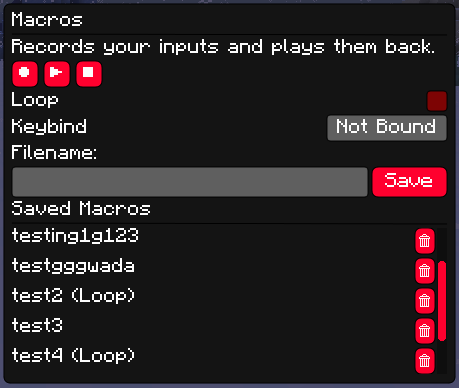
To record a macro, click the Record button (⏺) in the Macro Window. While recording, all of your keyboard presses, mouse clicks, mouse movements, and scroll inputs are captured with precise timing. Click the Stop button (⏹) to finish recording.
Inputs made while a GUI is open (such as the ClickGUI itself) are not recorded, so you can safely toggle recording without those inputs being captured.
Once a macro has been recorded or loaded, click the Play button (▶) to play it back. The macro will replay all of your recorded inputs in the exact order and timing they were originally performed. Click Stop (⏹) at any time to cancel playback.
During playback, any keys or buttons that are held down will be automatically released when the macro finishes or is stopped.
Enable the Loop checkbox to have the macro repeat continuously after it finishes playing. Disable the checkbox or press Stop to end the loop. Each macro can also be assigned a keybind through the Macro Window. Once a keybind is set, pressing that key will toggle the macro's playback on and off without needing to open the ClickGUI.
Macros can be saved with a custom name using the filename input and Save button in the Macro Window. Saved macros are stored in your Minecraft directory
under aoba/macros/ and will be automatically loaded the next time you launch the game.
The Macro Window displays a list of all saved macros. Clicking on a saved macro will load it for playback or editing. Macros can also be deleted from this list.
Advertisement
